PakFun Game Guide
PakFun at a Glance
Game categories: Hot, Slot, Mini Games and Cards.
Account options: Register, sign in or find password help.
Platform: 18+ casino-style games. Real-money bets can lead to losses.
Introduction
New to PakFun? The lobby puts search, featured games and account buttons on one screen. Browse Hot, Slot, Mini Games or Cards. Use the guide buttons above for the Android app, registration, login and help.
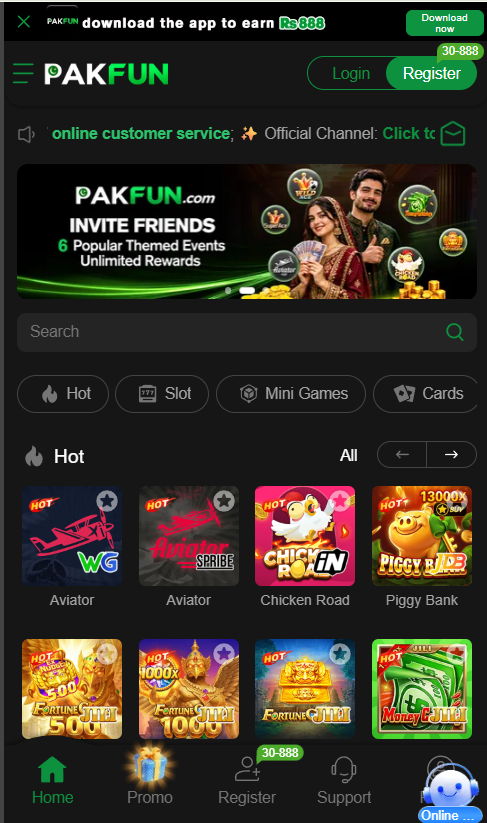
The first screen can look busy when you open it for the first time. There is a download banner at the top, a menu icon beside the logo, and Login and Register buttons on the right. Further down, a search box and game tiles help you find your way around. Each part has a different job. If you only want to explore the lobby, start with a category. If you came to fix a sign-in issue, the Login guide will take you straight to that topic.
This homepage explains the main screens shown in the PakFun screenshots, including the game lobby, account panels, promotions, and Message Center. The quick links above take you to separate guides for the full steps. The interface and offers can change, so check the labels on your own screen as you follow along.
What Is PakFun?
PakFun, also written as Pak Fun, is an adult gaming platform with casino-style games. The registration screen shows an 18+ requirement. Real-money bets can result in losses.
The lobby is the part you see first. It groups the games and also gives you a route to your account and support. Throughout the site, Pak Fun and PakFun refer to the same game platform shown in the screenshots. The PakFun App is the app visitors see mentioned in the download banner. A PakFun APK is the Android installation file discussed in the Download guide.
PakFun brings several kinds of games together. The lobby groups them by category, while each tile identifies a particular title. The categories help you find your way around, but the name or picture on a tile does not explain its rules. If you open a game, look for its instructions and any details about stakes before making a choice. You can spend time learning the interface and leave the wallet section alone.
Explore the Game Lobby
Browse Hot, Slot, Mini Games, and Cards, or search by game name. Hot shows Aviator, Chicken Road, and Piggy Bank. The two Aviator tiles show different provider logos, WG and Spribe.
PakFun App and Android APK
The home screen shows Download now. Before opening a PakFun APK, check the download source, file size, and supported Android version.
Register and Login
The account panels show +92 for Pakistani phone numbers and support email or account names. They offer password and code options. Look for Forgot Password on the Login screen.
Promos, Account and Support
Open Promo for Event, Mission, VIP, Unclaimed, and History. The account menu includes My Records, Security Center, and Login Device. For help, open Support and search the Help Center.
PakFun Promos and Missions Guide
PakFun Account and Security Guide
PakFun Deposit and Withdrawal Guide
How to Explore the PakFun Lobby
Use the search field below the banner when you know a game title. The category tabs are easier when you want to browse.
Search, categories, and the Hot row
The search field sits above the category tabs. Type the full name if you know it. If you are looking at a screenshot someone sent you, use the name printed under the artwork. The Hot section also shows an All label and two arrows. On a phone, only part of the lobby fits on the screen at once, so those controls are useful when you want to see more of the featured area. Some tiles have a star icon in the corner. The icon is a helpful landmark when you are comparing the screen with the screenshots on this guide.
The four visible categories are Hot, Slot, Mini Games, and Cards. Hot is a place to see featured titles from the lobby. Slot is where you can look for reel-style games. Mini Games and Cards have their own tabs, so you can move straight to the type of game you want to browse. The front screen only gives you a sample. The PakFun Games Guide explains the lobby and its categories in more detail.
Why there are two Aviator tiles
The screenshot shows one Aviator tile with a WG logo and another with a Spribe logo. Both say Aviator under the image. If you heard about a particular version, checking the provider mark is more reliable than reading the game name alone. Chicken Road and Piggy Bank are beside the two Aviator tiles in the same row. The bright artwork helps you spot the titles, but it tells you little about how a game works. Look for the rules and stake information on the game screen if you want to understand a round.
PakFun includes casino-style games for adults. A game tile, featured badge, or offer banner cannot tell you whether you will win. Real-money bets can result in losses. You can use this guide to learn where menus and game information are located before deciding whether to go any further.
PakFun App and APK Checks for Android
The top banner in the lobby shows Download now. The Message Center gives you another route to instructions. Open Support, find the Help Center, then select Download the APP. The screenshot shows a question titled How to download the APP?. It is useful to read the instructions before opening an Android installation file, especially if a link takes you to a different web address.
An APK is a file used to install an app on Android. The screenshots do not show the current PakFun APK file size, version, or minimum Android version. Look for those details at the source before you download. On most Android phones, you can find your Android version in Settings under About phone. Also check how much free storage you have. A file can finish downloading and still fail to install if the device cannot support it or has too little space.
If the download stops, review your browser download list for an incomplete file. If installation fails, write down the exact message. An incomplete download, unsupported version, and Android security alert call for different fixes. Use the PakFun Download Guide for the full checklist and the route to the help topic. An APK is for Android devices. Check the publisher’s listed options separately if you use an iPhone or computer.
Registration, Login, and Password Help
What the Register panel asks for
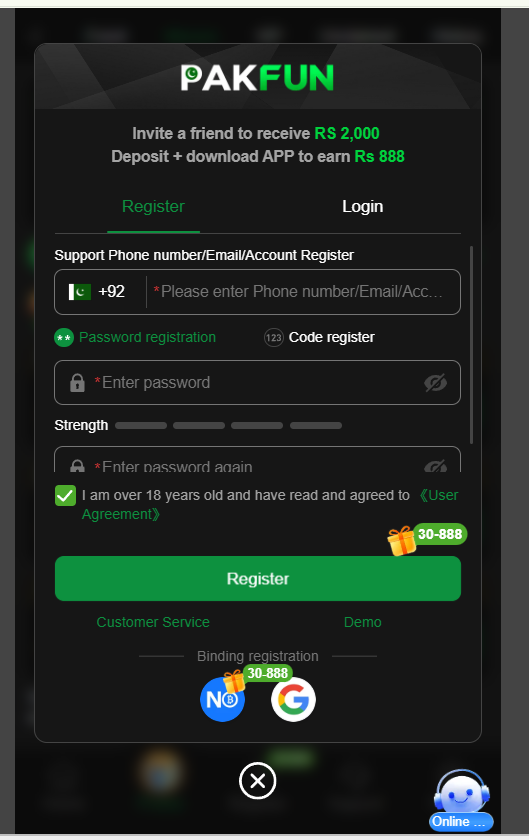
The Register and Login tabs are on the same panel. Choose Register to view sign-up options. The first field lists phone number, email, or account name. A Pakistani flag and +92 appear by the phone field. The screenshot shows Password registration and Code register as separate choices. Password registration has fields for entering and confirming a password. A strength meter appears between them, so you can see how the form rates the password before submitting.
The registration panel displays an 18+ checkbox and links to the User Agreement. Below the green Register button are Customer Service and Demo. At the bottom, the Binding registration row shows Not Only Wallet and Google icons. The screenshot shows the available controls on that panel. See the PakFun Register Guide for a closer look at the screen.
What to check when you cannot sign in
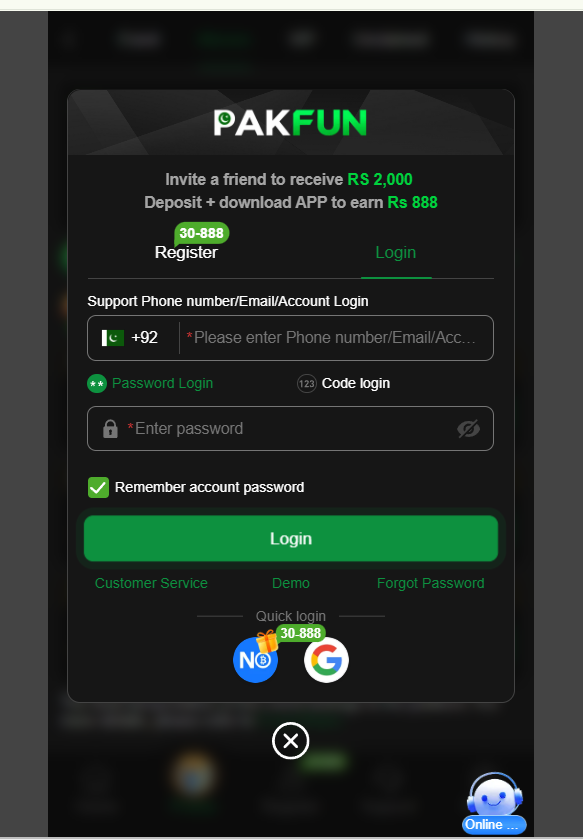
In the Login tab, use the phone number, email, or account name tied to your account. Password Login shows a password field with a visibility icon. Code login is listed beside it. The Remember account password option appears above the green Login button. Use that option only when you control the device. On a shared phone or computer, leaving the option off helps keep your account private.
Below the button you will find Customer Service, Demo, and Forgot Password. The Quick login row also shows Not Only Wallet and Google icons. If login fails, first confirm the account detail you entered. If you cannot remember the password, open Forgot Password and follow the instructions on screen. The PakFun Login Guide covers these options separately. Keep passwords and verification codes out of support messages and screenshots.
Understanding Events, Missions, and VIP
The Promo section has five top tabs. Event shows offer cards. Mission shows tasks and progress. VIP, Unclaimed, and History are listed beside them. The Event screenshots also show side filters and controls, including All, NO Wallet, History, and Refresh rewards. If you are trying to understand a promotion, start with the card title and open its rules. The amount printed on a banner may represent a maximum or a result that depends on conditions.
Event cards in the screenshots include Invitation Bonus, Daily Share, Weekly Sharing, Weekly Task, New Member Bonus, Deposit Bonus, Daily Rankings, VIP Club, Member’s Day, Loss Subsidy, and Login Rewards. The Member’s Day card lists the 8th, 18th, and 28th of each month. The Loss Subsidy card says up to 8%. These are examples from the screenshots. For dates, amounts, and eligibility, read the current rules inside the game.
Mission has views labeled Newplayer and Daily Mission. The Newplayer screen shows tasks related to linking Not Only Wallet, signing up, and logging in to the app with a first deposit. There are four chest icons, a Details link, and a Refresh control. The screen refers visitors to Event Rules for full conditions. The Promos and Missions Guide explains where to find each part of this area.
Account Menu, Wallet, and Records
The account screenshot shows Withdraw and Deposit near the top. Below those shortcuts are My Records and Manage withdrawal. My Records is described on screen as covering details, records, reports, and balance recovery. If you want to look up past activity, the records area is a better starting point than opening a new transaction screen. The Deposit and Withdrawal Guide covers the menu and the relevant support topics. Check the current screen for methods, amounts, and fees.
Lower down, the screenshot shows Invite, Profile, Security Center, Find us, Language, FAQ, Reward Feedback, and Login device. English is the language shown beside Language in that capture. If your question is about your details, start with Profile. If it is about a phone or computer used to access the account, look for Login device. For a wider look at these controls, open the Account and Security Guide.
How to Use PakFun Support
Tap Support to open the Message Center. It has Support, News, Notice, and Marquee tabs. The Support tab includes a panel labeled 24/7 Customer Service and shows WhatsApp, Telegram, and Facebook buttons. The screen also has separate Other Support and Facebook Support options. The WhatsApp and Telegram rows show Contact Now buttons. Check the channel name before sharing information, especially if you reached it from an outside message.
The Help Center sits below these support options. You can search for a question or choose a topic such as Download the APP or Deposit Problem. Focus on the part of the process that failed. For example, if the app file downloaded but would not open, include the Android version and the exact installation error. If a page will not load, note the screen name and when it happened. Keep your password, verification code, and payment credentials private. The PakFun Support Guide explains the Message Center and Help Center in more detail.
Frequently Asked Questions
Where should I start if I just want to look around?
Start on Home. Browse Hot for featured games or pick another category. Use search if you already know the title. The Register and Login panels also show a Demo link.
Does the +92 field mean I can only use a phone number?
The screenshot shows +92 beside the phone option and lists email and account name in the same panel. Use the method that matches your account and the choices displayed on your screen.
Where can I see daily missions or past promo activity?
Open Promo, choose Mission, and select Daily Mission. History is a separate tab at the top of the Promo screen. Check Event Rules for details about individual tasks and offers.
Where do I check a device or past account activity?
Choose Login device for device information and My Records for account activity. Both are listed in the account menu. If you cannot sign in, start with Forgot Password or Customer Service on the Login panel.
Conclusion
The PakFun lobby is the best place to learn the layout. Use Search, Hot, Slot, Mini Games, and Cards to see how games are grouped. Check the provider logo if two tiles share a title, as the WG and Spribe Aviator tiles do. For your next step, use the Download, Register, Login, Games, or Support guide linked on this page. The Promo and Account guides cover the areas you are likely to need after you know your way around. Check the details on your own screen whenever an app version, offer rule, or payment condition matters. If you get stuck, use the Help Center and share only the information needed to describe the issue.